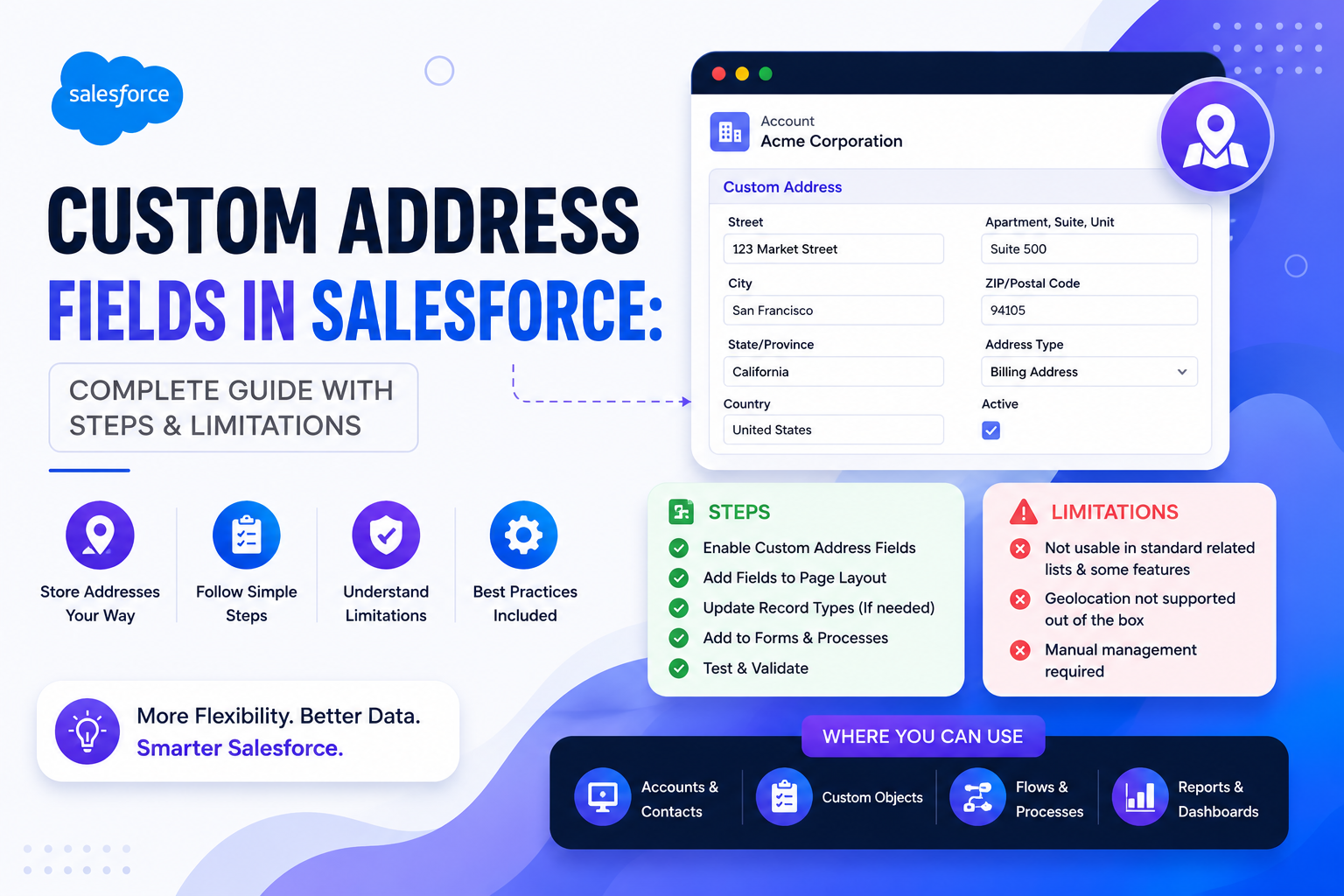
Address data plays a crucial role in Salesforce — whether you're managing customers, warehouses, field teams, or branch locations. Salesforce already provides Standard Address Fields out of the box, but they don't always meet every business requirement. That's where Custom Address Fields come in. In this guide, we'll cover what standard address fields are, why you might need a custom one, how to enable the feature, a step-by-step creation process, and the critical limitations you must know before using them.
📌 Understanding Salesforce Standard Address Fields
Salesforce provides a compound Address field on several standard objects including Accounts, Contacts, Leads, Person Accounts, Quotes, and Users. These address fields are composite (compound) fields — meaning they combine multiple sub-components into a single logical field: Street, City, State, Postal Code, and Country, all grouped under one 'Address' field.
Key Features of Standard Address Fields
Standard address fields support manual entry where users can directly type address details. They also integrate with Google Lookup for address auto-complete (when enabled in Setup), and have a fixed, predefined structure optimized for common CRM use cases. While powerful, they may not be flexible enough for specialized business scenarios.
❓ Why Create a Custom Address Field?
Standard address fields work great for customer addresses — but what if your business needs to track multiple distinct locations? Consider scenarios like warehouse locations, airport terminals, manufacturing plants, distribution centers, branch offices, and delivery hubs. In these cases, a custom address field gives you the flexibility and structure that standard fields simply cannot provide.
Benefits of Custom Address Fields
| Benefit | Description |
|---|---|
| Flexibility | Create address fields tailored to your specific business use case |
| Custom Object Support | Standard address fields are limited to standard objects — custom address fields work on custom objects too |
| Multiple Address Types | Manage different address types separately, e.g. Warehouse Address vs Service Location Address |
| Structured Data | Keeps address data structured and consistent across your org |
⚙️ Enabling Custom Address Fields (Beta)
Before you create a custom address field, you must first enable the feature in Setup. This is a one-time action with a critical caveat — once enabled, this setting cannot be disabled. Make absolutely sure your org genuinely needs this feature before activating it in production.
Step-by-Step: Enable Custom Address Fields
⚙ Gear Icon (top right)
  → Setup
    → Quick Find: "User Interface"
      → User Interface Settings
        → ✅ Check: "Use Custom Address Fields (Beta)"
          → Save
After saving, the feature becomes permanently active in your org. There is no rollback — plan accordingly before enabling it in production.
🛠 Step-by-Step: Creating a Custom Address Field
Once the feature is enabled, follow these steps to create a custom address field on any object.
⚙ Gear Icon
  → Setup
    → Object Manager
      → Select your Object (e.g. Account, Custom Object)
        → Fields & Relationships
          → New
            → Data Type: Address
              → Configure Field Details (see table below)
Field Configuration Details
| Setting | What to Fill |
|---|---|
| Field Label | A meaningful name, e.g. 'Warehouse Location' |
| Field Name | Auto-generated from label — review before saving |
| Help Text | Optional tooltip shown to users in the UI |
| Description | Internal notes for admins and developers |
| Field-Level Security | Assign read/edit visibility per profile |
| Page Layouts | Select which layouts should display this field |
After saving the field, navigate to Page Layouts for the relevant object, open the layout editor, and drag the new Address field into your desired section. Your custom address field is now ready for use.
🚫 Limitations You Must Know
Custom Address Fields are powerful, but they come with significant constraints that can impact your architecture. Review each limitation carefully before committing to a solution built around this feature.
❌ Cannot Be Marked as Required
Unlike standard fields, custom address fields cannot be marked as 'Required' at the field level. If data completeness is critical, enforce this via Validation Rules or Flow instead.
❌ DISTANCE() Function Not Supported
You cannot use the DISTANCE() or GEOLOCATION() SOQL functions with custom address fields. This is a hard blocker if you're building proximity-based features. For geolocation logic, use standard address fields or dedicated Geolocation custom fields instead.
❌ Bulk API Export Not Supported
Custom compound fields are NOT supported by Bulk API for export. You may encounter misleading error messages suggesting the feature isn't enabled. Use REST API or Bulk API 2.0 for data extraction instead.
❌ Search Supports Street Component Only
Global Search only indexes the Street component of a custom address field. City, State, Postal Code, and Country are not searchable. This is a significant functional difference from standard address fields and affects user experience in search-heavy workflows.
❌ Reporting Limitations
Compound address fields are not directly supported in Salesforce Reports. You must add each sub-component — Street, City, State, Postal Code, Country — as separate columns individually. Plan your report layouts accordingly.
❌ Additional Constraints at a Glance
| Limitation | Detail |
|---|---|
| Skinny Tables | Cannot select components as partition columns |
| Search Layout Filters | Not supported in Classic; can cause deployment failures in managed packages |
| Data Integration Rules | Country and State components unavailable for mapping |
| Label Customization | Cannot rename or localize individual components (Street, City, etc.) |
| Section Label Behavior | Does not auto-append 'Address' — including it in the label makes it appear on every component label |
| GeoCodeAccuracy | Field length differs from standard address fields — may cause integration inconsistencies |
📊 Standard vs Custom Address Fields — Quick Comparison
| Feature | Standard Address | Custom Address |
|---|---|---|
| Mark as Required | ✅ Yes | ❌ No |
| DISTANCE() Function | ✅ Supported | ❌ Not Supported |
| Bulk API Export | ✅ Yes | ❌ No |
| Search Support | ✅ Full (all components) | ⚠️ Street only |
| Available on Custom Objects | ❌ No | ✅ Yes |
| Multiple per Object | ❌ Limited | ✅ Yes |
| Reporting (Compound) | ⚠️ Limited | ⚠️ Limited |
| Can Be Disabled After Enabling | N/A | ❌ Permanent |
🏁 Final Thoughts
Custom Address Fields are a genuinely useful feature — but they are not a replacement for standard address fields. Use them when you need multiple address types on a single object, when working with custom objects, or when tracking business-specific locations like warehouses and distribution centers. Avoid them when you need geolocation calculations with DISTANCE(), when search across all address components matters, or when Bulk API exports are part of your data strategy. Always evaluate your requirements carefully before enabling — because once it's on, it cannot be turned off. Understanding both the strengths and limitations ensures you make the right architectural decision for your Salesforce org.