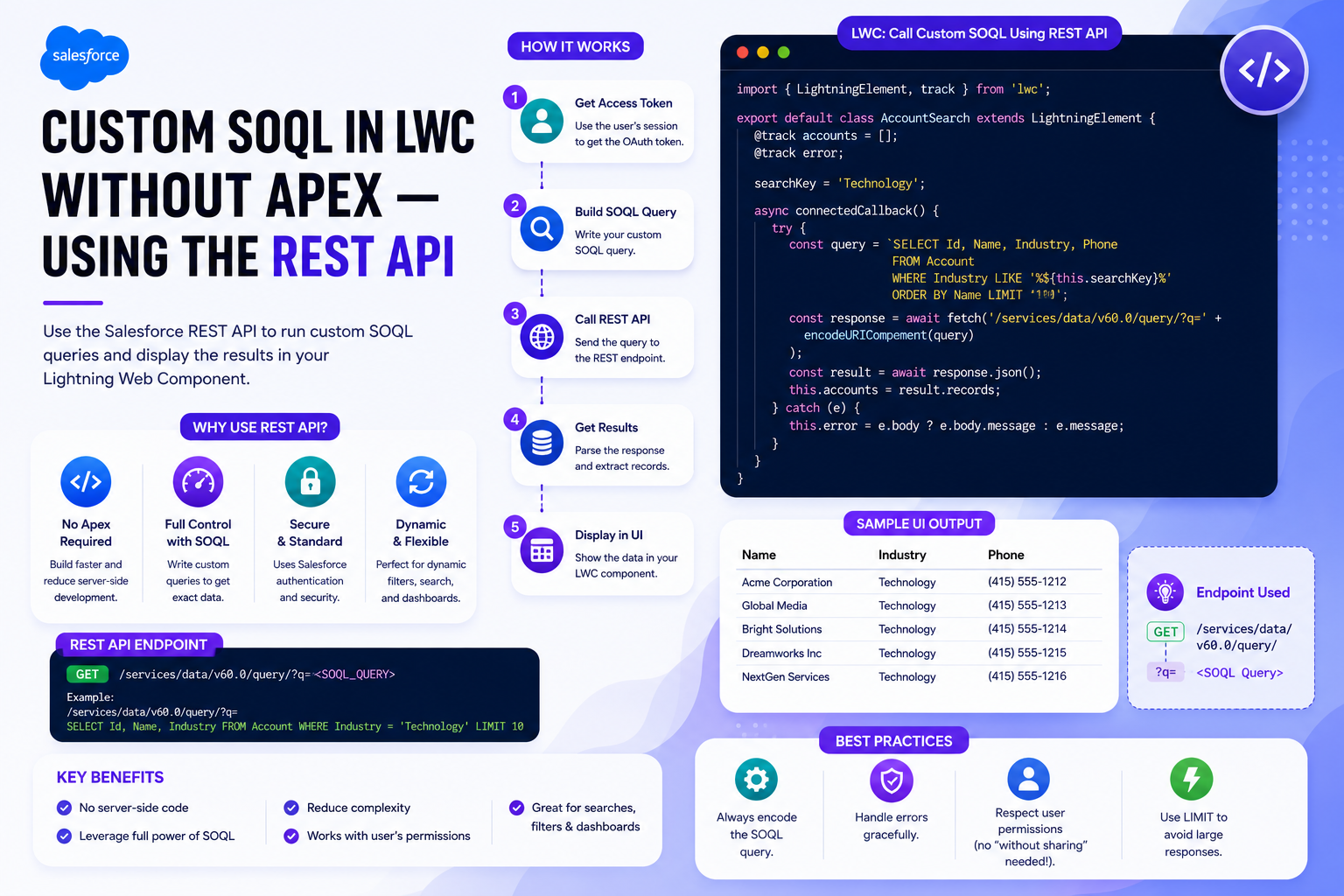
Sometimes Lightning Data Service is not flexible enough. You need a GROUP BY, a complex WHERE clause, a relationship subquery, or a field that List Views simply do not expose. In traditional Salesforce development, that means writing an Apex class with a @AuraEnabled method — but there is another way. You can hit the Salesforce REST API directly from your LWC using the browser's built-in fetch function, run any SOQL query you want, and never touch Apex. In this guide, we will build an Account REST Viewer LWC that runs a custom SOQL query against the REST API and renders the results.
When to Reach for the REST API
The REST API gives you everything SOQL gives you, plus full control over the query string. It is the right choice when LDS adapters are too restrictive but you still want to avoid the overhead of an Apex class with test coverage.
Good use cases for the REST API approach:
• Aggregate queries with GROUP BY, COUNT, SUM, AVG that LDS does not support
• Complex WHERE clauses with dynamic filters built from user input
• Parent-child relationship subqueries in a single round trip
• Querying objects without a suitable List View for getListUi
• Prototyping and admin tools where adding an Apex class feels heavyweight
The Authentication Challenge
Calling Salesforce REST endpoints requires a Bearer access token in the Authorization header. Browsers cannot read the standard Salesforce session cookie from JavaScript because it is HttpOnly — this is a security feature, not a bug. So before writing the fetch call, you need a strategy for getting that token into your LWC.
Three viable approaches, ordered by recommendation:
• Visualforce page injection — Embed your LWC inside a Visualforce page and pass {!$Api.Session_ID} into a window variable the component reads
• Experience Cloud Named Credentials — Use a Named Credential with per-user OAuth so fetch requests carry the token automatically
• Connected App with OAuth flow — Best for external users; involves more setup but works outside Salesforce too
Step 1 — Set Up Session Token Access
The simplest pattern is wrapping your LWC inside a Visualforce page that exposes the session Id as a window-level variable. Salesforce renders {!$Api.Session_ID} server-side, so the token never leaves your org's trusted domain. Your LWC then reads window.SF_SESSION_ID at runtime.
<apex:page showHeader="false" sidebar="false" standardStylesheets="false">
  <script>
    window.SF_SESSION_ID = '{!$Api.Session_ID}';
  </script>
  <c:accountRestViewer />
</apex:page>
Step 2 — Create the LWC Skeleton
Start your LWC by importing LightningElement and declaring the two reactive properties you will need: accounts (the result list) and error (any failure message). Initialize accounts to an empty array so the template can safely render before data arrives.
import { LightningElement } from 'lwc';

export default class AccountRestViewer extends LightningElement {
  accounts = [];
  error;
}
Step 3 — Add the Session Helper
Add a getSessionId helper that pulls the token from the window variable set by the Visualforce wrapper. Keeping this in a single method makes it easy to swap implementations later — for example, switching to Named Credentials or an OAuth refresh flow without rewriting your fetch calls.
getSessionId() {
  if (!window.SF_SESSION_ID) {
    throw new Error('Session token not available. Wrap this LWC in a Visualforce page.');
  }
  return window.SF_SESSION_ID;
}
Step 4 — Run the Query in connectedCallback
Use the connectedCallback lifecycle hook to fire the query when the component mounts. Mark the method async so you can use await for cleaner promise handling. Always wrap fetch calls in a try/catch — network failures, expired tokens, and invalid queries all throw, and unhandled exceptions in LWC silently break rendering.
async connectedCallback() {
  try {
    const query = encodeURIComponent(
      'SELECT Id, Name, Industry, Phone, AnnualRevenue FROM Account LIMIT 10'
    );
    const response = await fetch(
      `/services/data/v59.0/query/?q=${query}`,
      {
        headers: {
          'Authorization': `Bearer ${this.getSessionId()}`,
          'Content-Type': 'application/json'
        }
      }
    );
    if (!response.ok) {
      throw new Error(`REST API returned ${response.status}`);
    }
    const data = await response.json();
    this.accounts = data.records;
  } catch (e) {
    this.error = e.message;
  }
}
Step 5 — Why encodeURIComponent Is Mandatory
SOQL queries contain spaces, commas, equal signs, and sometimes apostrophes — all of which break URLs if passed raw. encodeURIComponent converts these into safe percent-encoded sequences (a space becomes %20, an apostrophe becomes %27). Skipping this step is the most common cause of mysterious 400 Bad Request errors when calling the query endpoint.
Step 6 — Build the HTML Template
Render the results inside a lightning-card with a lightning-datatable. Use lwc:if for conditional rendering of the loading, error, and empty states. The datatable expects a flat object structure, and the REST API conveniently returns records in exactly that shape — no transformation needed.
<template>
  <lightning-card title="Accounts (REST API)" icon-name="standard:account">
    <div class="slds-p-around_medium">

      <template lwc:if={accounts.length}>
        <lightning-datatable
          key-field="Id"
          data={accounts}
          columns={columns}
          hide-checkbox-column>
        </lightning-datatable>
      </template>

      <template lwc:if={error}>
        <div class="slds-text-color_error slds-p-around_small">
          {error}
        </div>
      </template>

    </div>
  </lightning-card>
</template>
Complete LWC JavaScript Code
Here is the full accountRestViewer.js with column definitions, the session helper, and the query call wired together:
import { LightningElement } from 'lwc';

export default class AccountRestViewer extends LightningElement {
  accounts = [];
  error;

  columns = [
    { label: 'Name', fieldName: 'Name', type: 'text' },
    { label: 'Industry', fieldName: 'Industry', type: 'text' },
    { label: 'Phone', fieldName: 'Phone', type: 'phone' },
    { label: 'Annual Revenue', fieldName: 'AnnualRevenue', type: 'currency' }
  ];

  getSessionId() {
    if (!window.SF_SESSION_ID) {
      throw new Error('Session token not available. Wrap this LWC in a Visualforce page.');
    }
    return window.SF_SESSION_ID;
  }

  async connectedCallback() {
    try {
      const query = encodeURIComponent(
        'SELECT Id, Name, Industry, Phone, AnnualRevenue FROM Account LIMIT 10'
      );
      const response = await fetch(
        `/services/data/v59.0/query/?q=${query}`,
        {
          headers: {
            'Authorization': `Bearer ${this.getSessionId()}`,
            'Content-Type': 'application/json'
          }
        }
      );
      if (!response.ok) {
        throw new Error(`REST API returned ${response.status}`);
      }
      const data = await response.json();
      this.accounts = data.records;
    } catch (e) {
      this.error = e.message;
    }
  }
}
Configuring CSP for Self-Domain Fetch
Lightning Experience enforces a strict Content Security Policy (CSP) that blocks fetch calls to most external URLs. Calling /services/data/v59.0/... is a same-origin request and works by default — but if you are calling a different Salesforce instance or a custom endpoint, you must add it as a Trusted URL under Setup → Security → Trusted URLs and check the connect-src directive. Without this, fetch silently fails with a CSP violation in the browser console.
Comparison: REST API vs LDS vs Apex
| Feature | REST API fetch | LDS (getRecord / getListUi) | Apex @AuraEnabled |
|---|---|---|---|
| SOQL flexibility | Full SOQL syntax | Limited to adapter shape | Full SOQL syntax |
| Aggregates (GROUP BY) | Yes | No | Yes |
| Client-side caching | None (manual) | Automatic, shared | None by default |
| FLS / Sharing | Enforced by REST API | Enforced automatically | Manual enforcement |
| Auth setup | Session token needed | None — built in | None — runs as user |
| Reactivity | Manual re-fetch | Auto-refresh on change | Manual refresh |
| Best for | Custom SOQL, aggregates | Standard CRUD displays | Complex logic, callouts |
Security Considerations
Putting a session token into window scope has real security implications you must understand before shipping this pattern.
• Any other JavaScript running on the page can read window.SF_SESSION_ID — never use this pattern on pages with third-party scripts
• The token inherits the full permissions of the logged-in user — there is no permission scoping like with Named Credentials
• Session tokens are short-lived but still sensitive — never log them or transmit them to non-Salesforce domains
• For Experience Cloud or external user contexts, prefer Named Credentials with per-user OAuth over raw session injection
Best Practices
• Always wrap fetch in try/catch and check response.ok — a 401 or 400 returns valid JSON but is still a failure.
• Use encodeURIComponent on any value going into the URL — SOQL strings, filter values, sort fields, everything.
• Pin the API version (v59.0) explicitly in the URL — never use latest, since Salesforce can change response shapes between releases.
• Handle the totalSize and nextRecordsUrl fields in the response if you expect more than 2000 rows — REST query results are paginated.
• Reach for LDS first, REST second, Apex last — each layer adds complexity, so pick the simplest one that solves your problem.
• For repeated queries, cache results in component state or sessionStorage — the REST API has no built-in caching like LDS does.
The REST API approach unlocks the full power of SOQL inside your LWC without writing a single Apex class. It is more setup than LDS and gives you no caching for free, but in exchange you get unrestricted query flexibility — aggregates, subqueries, dynamic filters, and complex joins are all on the table. Use it when LDS adapters fall short and Apex feels like too much ceremony, and your Salesforce frontend stays lean, modern, and entirely client-side.