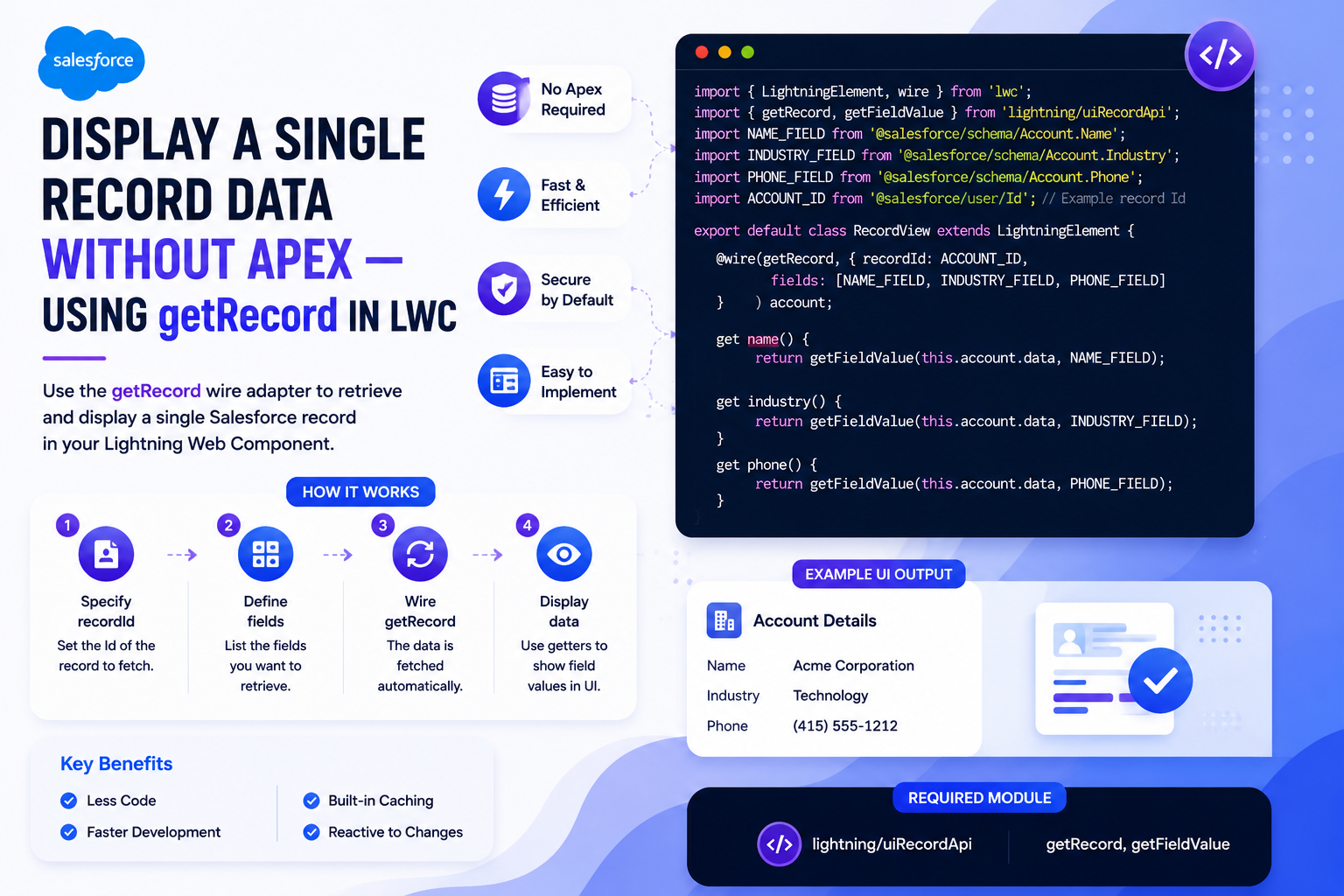
When you land on a Salesforce record page, you usually only care about one record — the one in front of you. Fetching it through Apex with a SOQL query just to display a handful of fields is overkill. Salesforce gives you a much cleaner option: the getRecord wire adapter from lightning/uiRecordApi. In this guide, we will build an Account Record Viewer LWC that fetches a single record's fields entirely through Lightning Data Service — no Apex, no SOQL, and just a few lines of JavaScript.
Why getRecord Is the Right Tool for Record Pages
Record pages already know which record you are viewing — Salesforce automatically injects the recordId into any LWC placed on the page. getRecord is purpose-built for this scenario: give it a recordId and a list of fields, and it returns exactly those fields, cached, reactive, and security-trimmed.
Why getRecord beats Apex for single-record display:
• Fetches only the fields you ask for — no over-fetching, smaller payload
• Shares its cache with the standard record page, so it is often a zero-network call
• Auto-updates when the record is edited anywhere in the app
• Respects FLS — restricted users automatically see null for fields they cannot access
• Works seamlessly with getFieldValue helper for clean field extraction
What We Will Build
A drop-in LWC component for the Account record page that displays Name, Industry, Phone, and Annual Revenue using only client-side modules:
• lightning/uiRecordApi (getRecord) — Fetches a single record by Id with the exact fields requested
• getFieldValue — Helper that safely extracts a field value from the record response
• @salesforce/schema imports — Compile-time-safe field references that fail the build if a field is renamed or deleted
Step 1 — Import the Modules and Field References
Start by importing LightningElement, api (for the recordId property), and wire from the lwc module. Then import getRecord and getFieldValue from lightning/uiRecordApi. Finally, import each field as a schema reference — this is critical because it tells the Salesforce platform which fields your component depends on, preventing accidental deletion and enabling safer refactoring.
import { LightningElement, api, wire } from 'lwc';
import { getRecord, getFieldValue } from 'lightning/uiRecordApi';
import NAME_FIELD from '@salesforce/schema/Account.Name';
import INDUSTRY_FIELD from '@salesforce/schema/Account.Industry';
import PHONE_FIELD from '@salesforce/schema/Account.Phone';
import REVENUE_FIELD from '@salesforce/schema/Account.AnnualRevenue';
Step 2 — Declare the recordId Property
Decorate a recordId property with @api so Salesforce can inject the current record Id when the component is placed on a record page. You do not need to set this value manually — the Lightning App Builder wires it up automatically based on the page context.
@api recordId;Step 3 — Wire getRecord with Reactive Parameters
Use the @wire decorator with getRecord. The recordId parameter is passed as the string '$recordId' (note the dollar sign) — this tells LWC to treat it as a reactive reference. Whenever recordId changes, the wire automatically re-fires and fetches the new record. Pass the field references as an array so the UI API knows exactly which fields to return.
@wire(getRecord, {
  recordId: '$recordId',
  fields: [NAME_FIELD, INDUSTRY_FIELD, PHONE_FIELD, REVENUE_FIELD]
})
account;
Step 4 — Expose Fields with Getter Methods
Create getter methods for each field you want to display. Each getter uses getFieldValue to safely extract the field value from the wired account.data property. If the record has not loaded yet, getFieldValue returns undefined gracefully — no null-checking boilerplate needed in your template.
get name() { return getFieldValue(this.account.data, NAME_FIELD); }
get industry() { return getFieldValue(this.account.data, INDUSTRY_FIELD); }
get phone() { return getFieldValue(this.account.data, PHONE_FIELD); }
get revenue() { return getFieldValue(this.account.data, REVENUE_FIELD); }
Step 5 — Build the HTML Template
Render the getters inside a lightning-card. Use lightning-formatted-phone and lightning-formatted-number for automatic locale-aware formatting — these are far better than raw text interpolation because they handle nulls, internationalization, and accessibility for free.
<template>
  <lightning-card title="Account Details" icon-name="standard:account">
    <div class="slds-p-around_medium">

      <template lwc:if={account.data}>
        <p><strong>Name:</strong> {name}</p>
        <p><strong>Industry:</strong> {industry}</p>
        <p><strong>Phone:</strong>
          <lightning-formatted-phone value={phone}></lightning-formatted-phone>
        </p>
        <p><strong>Annual Revenue:</strong>
          <lightning-formatted-number
            value={revenue}
            format-style="currency"
            currency-code="USD">
          </lightning-formatted-number>
        </p>
      </template>

      <template lwc:if={account.error}>
        <div class="slds-text-color_error">
          Unable to load account details.
        </div>
      </template>
    </div>
  </lightning-card>
</template>
Step 6 — Configure the Meta XML for Record Pages
Expose the component on Record Pages and restrict it to the Account object so it does not show up in irrelevant places like Lightning App Builder for Contacts or Opportunities. The objects element under targetConfig is what scopes the component to specific sObjects.
<?xml version="1.0" encoding="UTF-8"?>
<LightningComponentBundle xmlns="http://soap.sforce.com/2006/04/metadata">
  <apiVersion>59.0</apiVersion>
  <isExposed>true</isExposed>
  <targets>
    <target>lightning__RecordPage</target>
  </targets>
  <targetConfigs>
    <targetConfig targets="lightning__RecordPage">
      <objects>
        <object>Account</object>
      </objects>
    </targetConfig>
  </targetConfigs>
</LightningComponentBundle>
Complete LWC JavaScript Code
Here is the full accountRecordViewer.js file combining every step into a single deployable component:
import { LightningElement, api, wire } from 'lwc';
import { getRecord, getFieldValue } from 'lightning/uiRecordApi';
import NAME_FIELD from '@salesforce/schema/Account.Name';
import INDUSTRY_FIELD from '@salesforce/schema/Account.Industry';
import PHONE_FIELD from '@salesforce/schema/Account.Phone';
import REVENUE_FIELD from '@salesforce/schema/Account.AnnualRevenue';

export default class AccountRecordViewer extends LightningElement {
  @api recordId;

  @wire(getRecord, {
    recordId: '$recordId',
    fields: [NAME_FIELD, INDUSTRY_FIELD, PHONE_FIELD, REVENUE_FIELD]
  })
  account;

  get name() { return getFieldValue(this.account.data, NAME_FIELD); }
  get industry() { return getFieldValue(this.account.data, INDUSTRY_FIELD); }
  get phone() { return getFieldValue(this.account.data, PHONE_FIELD); }
  get revenue() { return getFieldValue(this.account.data, REVENUE_FIELD); }
}
Why the $ Prefix Matters
Passing recordId: '$recordId' (with quotes and a dollar sign) is what makes the wire reactive. Without the dollar sign, LWC treats the string literally and tries to fetch a record with the Id "recordId" — which obviously fails. The dollar sign tells the wire service to read the value from this.recordId and re-invoke the adapter whenever it changes. This is a uniquely LWC pattern and a common stumbling block for new developers.
Handling Loading, Error, and Empty States
The wired account property exposes three states you should handle in your template:
• account.data — Populated when the record is successfully fetched
• account.error — Populated if the user lacks access, the record is deleted, or the Id is invalid
• Both undefined — Initial loading state before the wire resolves
Always render conditional UI for at least the data and error states. For polish, add a lightning-spinner during the initial loading state when both are undefined.
Comparison: getRecord vs getListUi vs Apex
| Feature | getRecord | getListUi | Apex @AuraEnabled |
|---|---|---|---|
| Records returned | Exactly one | List View results | Anything via SOQL |
| Field selection | Explicit field list | List View columns | Custom in query |
| Cache sharing | With standard page | Across components | None by default |
| Reactivity | Auto on record edit | Auto on data change | Manual refresh |
| Best context | Record pages | List/table displays | Aggregates, callouts |
| Code volume | Very low | Low | High (class + test) |
Best Practices
• Always use the $ prefix on recordId — it is the single most common bug in getRecord usage.
• Import field references from @salesforce/schema instead of hardcoding strings, so renames break the build instead of breaking production.
• Use getFieldValue rather than navigating account.data.fields.Name.value manually — it handles relationship traversal and nulls cleanly.
• Use lightning-formatted-* base components for phone, currency, date, and number fields to get locale-aware formatting for free.
• Restrict the component to relevant objects in meta XML so it does not pollute App Builder for unrelated record pages.
• For deeply related fields (e.g., Account.Owner.Manager.Email), use dot notation in the schema import — getRecord supports up to five levels of parent traversal.
Whether you are building a custom record detail panel, a related-data widget, or a record-aware utility component, getRecord is the lightest, fastest, and most maintainable way to fetch single-record data in Salesforce LWC. By combining it with schema imports and getFieldValue, you get a fully reactive, security-aware, cache-friendly component in fewer than twenty lines of JavaScript — and zero Apex.