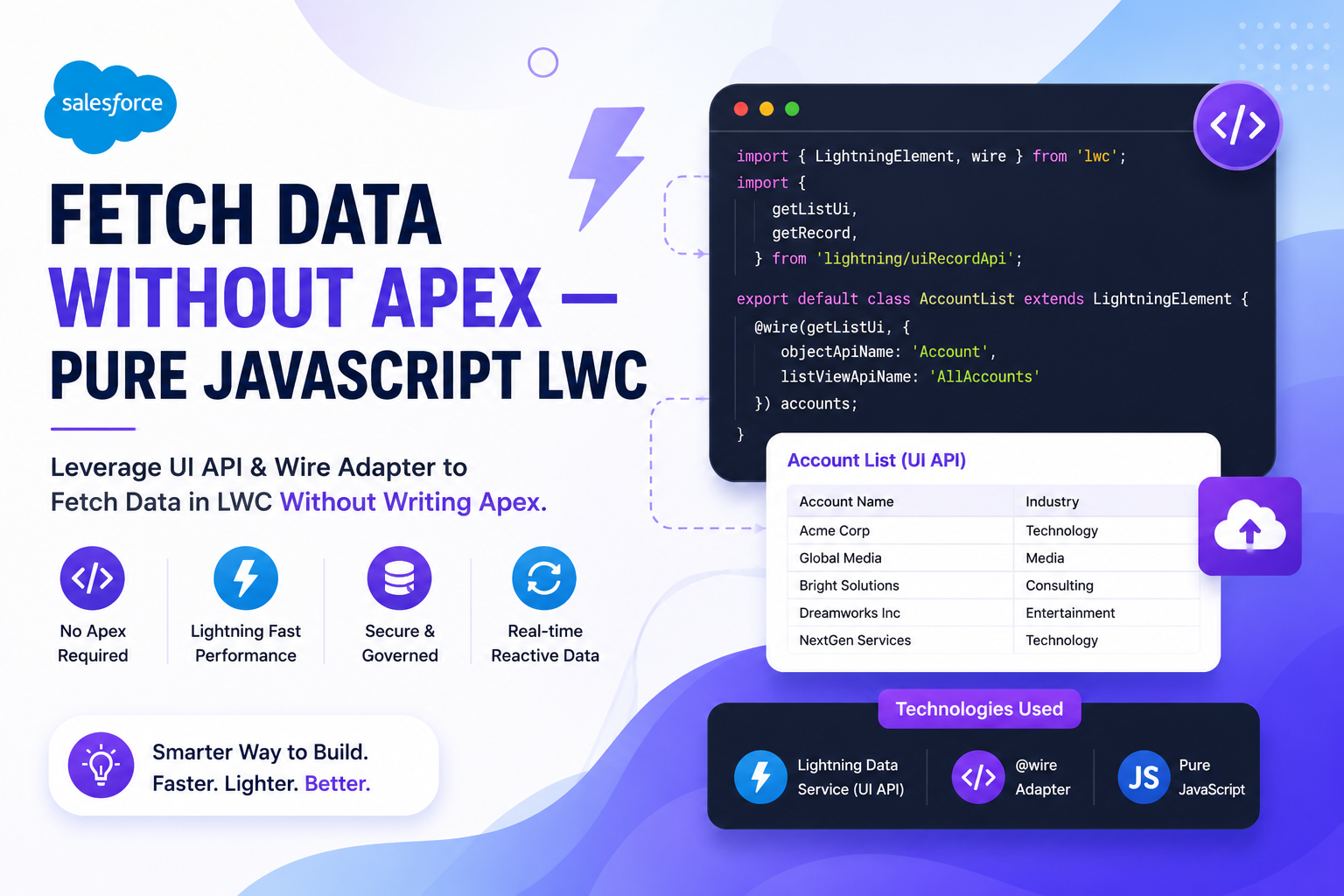
In most Salesforce Lightning Web Component (LWC) projects, developers instinctively reach for Apex the moment they need to fetch records — but that is not always necessary. Salesforce provides powerful client-side modules through Lightning Data Service (LDS) and the UI API that let you query, display, and even cache record data entirely in JavaScript. In this guide, we will build an Account Viewer LWC that fetches Account records and object metadata without writing a single line of Apex.
Why Avoid Apex for Simple Data Fetching?
Apex controllers are powerful, but they add overhead for simple read operations. Every Apex call requires a test class, counts against governor limits, runs on the server, and bypasses Salesforce's built-in client-side caching. For straightforward record retrieval, this is unnecessary complexity.
Common drawbacks of using Apex for basic data fetching:
• Requires writing and maintaining test classes (75% coverage rule)
• Counts toward Apex CPU and SOQL governor limits
• No automatic client-side caching — every call hits the server
• Manual FLS (Field-Level Security) and CRUD enforcement needed
• Slower development cycle due to deployment and testing requirements
What We Will Use Instead
We will use two built-in Salesforce LWC modules — no third-party libraries, no Apex, no SOQL:
• lightning/uiObjectInfoApi (getObjectInfo) — Fetches metadata about any sObject including labels, API names, fields, and key prefixes
• lightning/uiListApi (getListUi) — Fetches records from a List View along with column information, sort order, and pagination details
Both modules are part of the Salesforce UI API and automatically handle FLS, sharing rules, and client-side caching out of the box.
Step 1 — Create the LWC HTML Template
Start by creating the markup for the component. We will use lightning-card as the container, display object metadata at the top, and render the Account records inside a lightning-datatable. The lwc:if directive conditionally renders sections only when data is available.
<template>
  <lightning-card title="Account Viewer (No Apex)" icon-name="standard:account">
    <div class="slds-p-around_medium">

      <!-- Object Metadata Info -->
      <template lwc:if={objectInfo.data}>
        <div class="slds-box slds-m-bottom_medium">
          <h3 class="slds-text-heading_small">Object Info</h3>
          <p><strong>Label:</strong> {objectInfo.data.label}</p>
          <p><strong>API Name:</strong> {objectInfo.data.apiName}</p>
          <p><strong>Key Prefix:</strong> {objectInfo.data.keyPrefix}</p>
        </div>
      </template>

      <!-- Account Records -->
      <template lwc:if={accounts}>
        <lightning-datatable
          key-field="Id"
          data={accounts}
          columns={columns}
          hide-checkbox-column>
        </lightning-datatable>
      </template>

      <template lwc:if={error}>
        <div class="slds-text-color_error">{error}</div>
      </template>
    </div>
  </lightning-card>
</template>
Step 2 — Import the UI API Modules
At the top of your JavaScript file, import LightningElement, the wire decorator, and the two UI API adapters. Also import the Account schema reference — this is the recommended way to refer to objects, since it gives you compile-time safety against typos in API names.
import { LightningElement, wire } from 'lwc';
import { getObjectInfo } from 'lightning/uiObjectInfoApi';
import { getListUi } from 'lightning/uiListApi';
import ACCOUNT_OBJECT from '@salesforce/schema/Account';
Step 3 — Define the Datatable Columns
Define the columns property as a class field. Each column object maps a fieldName (matching the Account field API name) to a label and data type. The lightning-datatable component automatically formats values based on the type — phone numbers get tap-to-call links, and currency fields get locale-aware formatting.
columns = [
  { label: 'Name', fieldName: 'Name', type: 'text' },
  { label: 'Industry', fieldName: 'Industry', type: 'text' },
  { label: 'Phone', fieldName: 'Phone', type: 'phone' },
  { label: 'Type', fieldName: 'Type', type: 'text' },
  { label: 'Annual Revenue', fieldName: 'AnnualRevenue', type: 'currency' }
];
Step 4 — Wire getObjectInfo for Metadata
Use the @wire decorator with getObjectInfo to fetch Account metadata. Because we are wiring directly to a property (objectInfo), the result becomes reactive — the template automatically re-renders when data arrives. You can access metadata via objectInfo.data.label, objectInfo.data.apiName, objectInfo.data.fields, and many more properties.
// Wire 1: Get Account object metadata
@wire(getObjectInfo, { objectApiName: ACCOUNT_OBJECT })
objectInfo;
Step 5 — Wire getListUi for Account Records
Now wire getListUi to fetch actual records from a List View. Unlike getObjectInfo, we wire this one to a function so we can transform the response. The UI API returns records in a nested structure where each field is an object with both value and displayValue properties — we flatten this into a clean array suitable for lightning-datatable.
// Wire 2: Get list of Account records (uses a list view)
@wire(getListUi, {
  objectApiName: ACCOUNT_OBJECT,
  listViewApiName: 'AllAccounts',
  pageSize: 10
})
wiredAccounts({ data, error }) {
  if (data) {
    this.accounts = data.records.records.map(record => ({
      Id: record.id,
      Name: record.fields.Name?.value,
      Industry: record.fields.Industry?.value,
      Phone: record.fields.Phone?.value,
      Type: record.fields.Type?.value,
      AnnualRevenue: record.fields.AnnualRevenue?.value
    }));
    this.error = undefined;
  } else if (error) {
    this.error = error.body?.message || 'Failed to load accounts';
    this.accounts = undefined;
  }
}
Step 6 — Configure the Meta XML
Expose the component on App Pages, Home Pages, and Record Pages by setting isExposed to true and listing the targets in the meta XML file. Without this configuration, your component will not appear in Lightning App Builder.
<?xml version="1.0" encoding="UTF-8"?>
<LightningComponentBundle xmlns="http://soap.sforce.com/2006/04/metadata">
  <apiVersion>59.0</apiVersion>
  <isExposed>true</isExposed>
  <targets>
    <target>lightning__AppPage</target>
    <target>lightning__HomePage</target>
    <target>lightning__RecordPage</target>
  </targets>
</LightningComponentBundle>
Complete LWC JavaScript Code
Here is the full accountViewer.js file combining all the steps above into a single, deployable component:
import { LightningElement, wire } from 'lwc';
import { getObjectInfo } from 'lightning/uiObjectInfoApi';
import { getListUi } from 'lightning/uiListApi';
import ACCOUNT_OBJECT from '@salesforce/schema/Account';

export default class AccountViewer extends LightningElement {

  accounts;
  error;

  columns = [
    { label: 'Name', fieldName: 'Name', type: 'text' },
    { label: 'Industry', fieldName: 'Industry', type: 'text' },
    { label: 'Phone', fieldName: 'Phone', type: 'phone' },
    { label: 'Type', fieldName: 'Type', type: 'text' },
    { label: 'Annual Revenue', fieldName: 'AnnualRevenue', type: 'currency' }
  ];

  @wire(getObjectInfo, { objectApiName: ACCOUNT_OBJECT })
  objectInfo;

  @wire(getListUi, {
    objectApiName: ACCOUNT_OBJECT,
    listViewApiName: 'AllAccounts',
    pageSize: 10
  })
  wiredAccounts({ data, error }) {
    if (data) {
      this.accounts = data.records.records.map(record => ({
        Id: record.id,
        Name: record.fields.Name?.value,
        Industry: record.fields.Industry?.value,
        Phone: record.fields.Phone?.value,
        Type: record.fields.Type?.value,
        AnnualRevenue: record.fields.AnnualRevenue?.value
      }));
      this.error = undefined;
    } else if (error) {
      this.error = error.body?.message || 'Failed to load accounts';
      this.accounts = undefined;
    }
  }
}
How the Wire Service Works
The @wire decorator is reactive — it automatically subscribes your component to Salesforce's Lightning Data Service cache. When the data is first requested, LDS fetches it from the server and stores it in a shared client-side cache. If any other component (or the same one) requests the same data again, it is served instantly from cache. Even better, when a user updates a record anywhere in the app, all wired components automatically refresh with the new values — no manual refresh logic needed.
Alternative Approaches
Beyond getListUi, there are two other Apex-free options worth knowing:
• getRecord (lightning/uiRecordApi) — Fetches a single record by Id with specific fields. Perfect for record detail pages.
• graphql (lightning/uiGraphQLApi) — Runs GraphQL queries against Salesforce data with full filtering, sorting, and relationship traversal. The most flexible option, ideal when getListUi is too rigid.
Use getListUi when you want List View behavior (filters, sort orders defined by admins), getRecord for single records, and GraphQL when you need custom query logic without writing Apex.
Comparison: Apex vs Pure LDS
| Feature | Apex @AuraEnabled | LDS / UI API |
|---|---|---|
| Setup | Class + test class required | Import module only |
| Client-side caching | Manual implementation | Automatic, shared cache |
| FLS / Sharing | Manual enforcement | Enforced automatically |
| Governor limits | Counts toward Apex CPU & SOQL | No Apex limits consumed |
| Reactivity | Manual refresh needed | Auto-refresh on data change |
| Test class coverage | Required (75%) | Not required |
| Custom logic support | Unlimited | Limited to UI API features |
| Best for | Complex business logic | Standard CRUD operations |
Best Practices
• Always import object and field references from @salesforce/schema instead of hardcoding API names as strings.
• Use optional chaining (?.) when accessing nested field values to avoid runtime errors on null fields.
• Keep pageSize reasonable — getListUi supports values between 1 and 2000, but smaller pages load faster.
• Use lwc:if (LWC API 59+) instead of the older if:true / if:false syntax for cleaner conditional rendering.
• Reach for Apex only when LDS cannot do the job — for example, aggregate queries, complex joins, or callouts.
• Test the component with different user profiles to verify FLS and sharing rules are respected automatically.
Whether you are building a simple record viewer, a dashboard, or a related-list component, Salesforce's UI API modules give you a clean, performant, and maintainable alternative to Apex. By embracing Lightning Data Service, you get automatic caching, reactive updates, built-in security enforcement, and zero test class overhead — letting you ship features faster while keeping your org leaner.