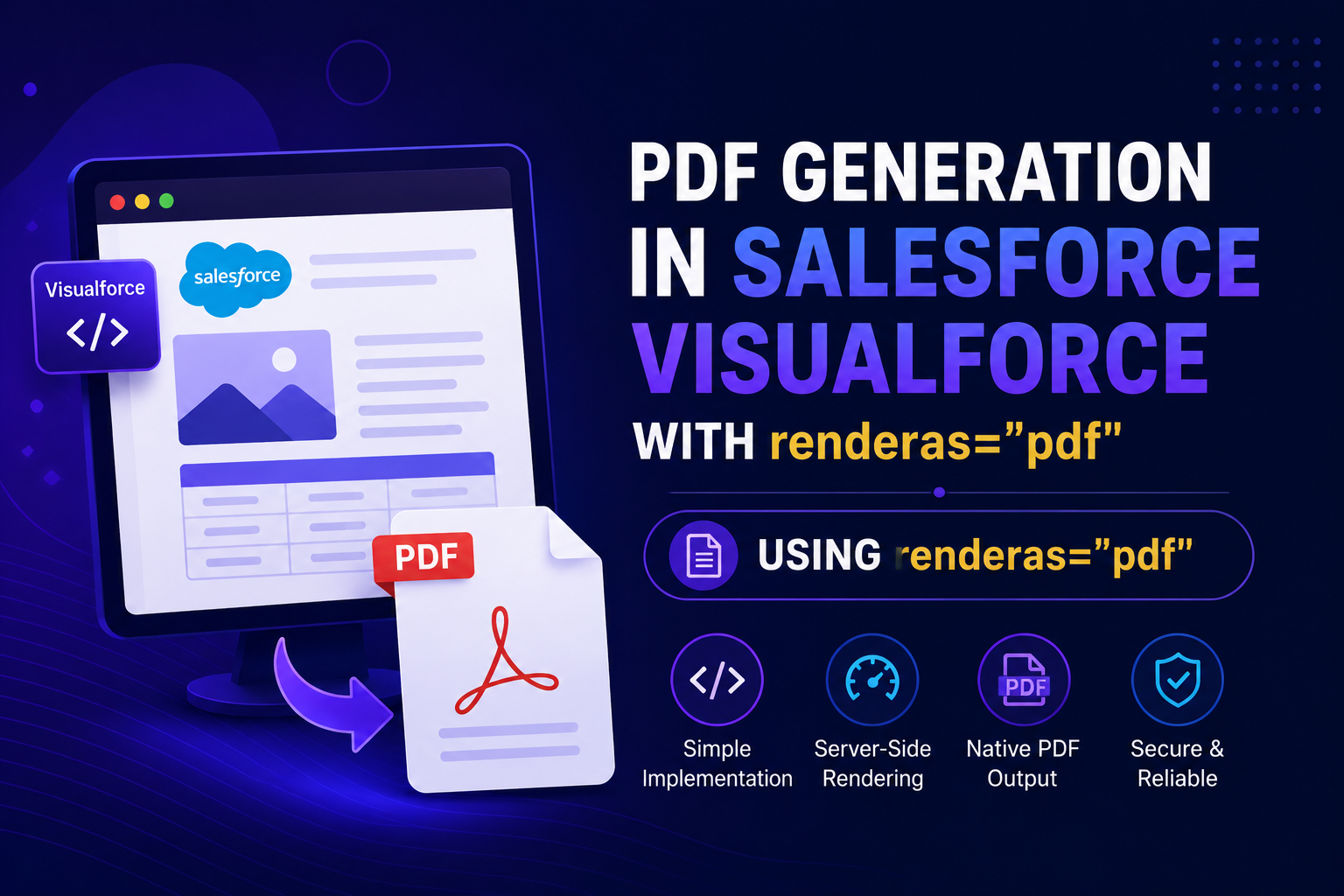
Generating PDFs is a common requirement in Salesforce projects — from invoices and reports to contracts and proposals. Salesforce provides a built-in, native approach via Visualforce's renderAs="pdf" attribute, allowing you to produce PDFs directly on the platform without any external tools or libraries.
Using renderAs="pdf" in Visualforce (Built-in Salesforce Approach)
Salesforce natively supports PDF generation via Visualforce pages. By setting renderAs="pdf" on the apex:page tag, the platform renders the page as a downloadable PDF using the Flying Saucer PDF library under the hood. This approach keeps everything on-platform, requires no external dependencies, and works well for structured reports, invoices, and documents built on Apex data.
Step 1 — Create a Visualforce Page in VS Code
Open your Salesforce project in VS Code with the Salesforce Extension Pack installed. Create a new file at: force-app/main/default/pages/MyInvoicePDF.page
<apex:page renderAs="pdf" applyBodyTag="false" showHeader="false" sidebar="false" controller="MyInvoiceController">
  <head>
    <style>
      body { font-family: Arial, sans-serif; font-size: 12px; }
      h1 { color: #00A1E0; }
      table { width: 100%; border-collapse: collapse; }
      td, th { border: 1px solid #ddd; padding: 8px; }
    </style>
  </head>
  <body>
    <h1>Invoice</h1>
    <p>Account: <apex:outputText value="{!accountName}"/></p>
    <table>
      <tr><th>Item</th><th>Amount</th></tr>
      <apex:repeat value="{!lineItems}" var="item">
        <tr>
          <td><apex:outputText value="{!item.Name}"/></td>
          <td><apex:outputText value="{!item.Amount__c}"/></td>
        </tr>
      </apex:repeat>
    </table>
  </body>
</apex:page>
Step 2 — Create the Apex Controller
Create force-app/main/default/classes/MyInvoiceController.cls to supply data to the Visualforce page.
public class MyInvoiceController {
    public String accountName { get; set; }
    public List<Invoice_Line__c> lineItems { get; set; }

    public MyInvoiceController() {
        Id acctId = ApexPages.currentPage().getParameters().get('id');
        Account acct = [SELECT Name FROM Account WHERE Id = :acctId LIMIT 1];
        accountName = acct.Name;
        lineItems = [SELECT Name, Amount__c FROM Invoice_Line__c WHERE Account__c = :acctId];
    }
}
Step 3 — Deploy and Test
Deploy using SFDX from the VS Code terminal: sf project deploy start --source-dir force-app
Then navigate to /apex/MyInvoicePDF?id=
Limitations of renderAs="pdf"
• No JavaScript support — dynamic client-side content will not render
• Limited CSS support — no Flexbox, Grid, or modern CSS (CSS2 only via Flying Saucer)
• Not compatible with Lightning Web Components (LWC)
• Large or complex layouts can produce unpredictable output
• Page size and margins require @page CSS rule workarounds
• Cannot be triggered directly from a Flow or LWC without a Visualforce wrapper
Best Practices
• Always test PDF output across browsers before deploying Visualforce PDF pages
• Use the @page CSS rule to control page size and margins — e.g. @page { size: A4; margin: 20mm; }
• Avoid floats and position: absolute — use tables for layout instead, as Flying Saucer handles them more reliably
• Keep your Apex controller logic lean — avoid complex SOQL in constructors; use lazy loading where possible
• For large datasets, use an async Apex Queueable job to pre-generate and store PDFs as Salesforce Files (ContentVersion) rather than rendering on demand
• Use ContentDocumentLink to relate stored PDFs to the correct Salesforce record for easy retrieval
Salesforce's built-in renderAs="pdf" is the fastest way to generate structured PDFs for reports, invoices, and contracts — especially when your data is already in Salesforce and your layout needs are straightforward. Pair it with a clean Apex controller and CSS2-compatible styles, and you can produce professional documents entirely on-platform without any external tools.