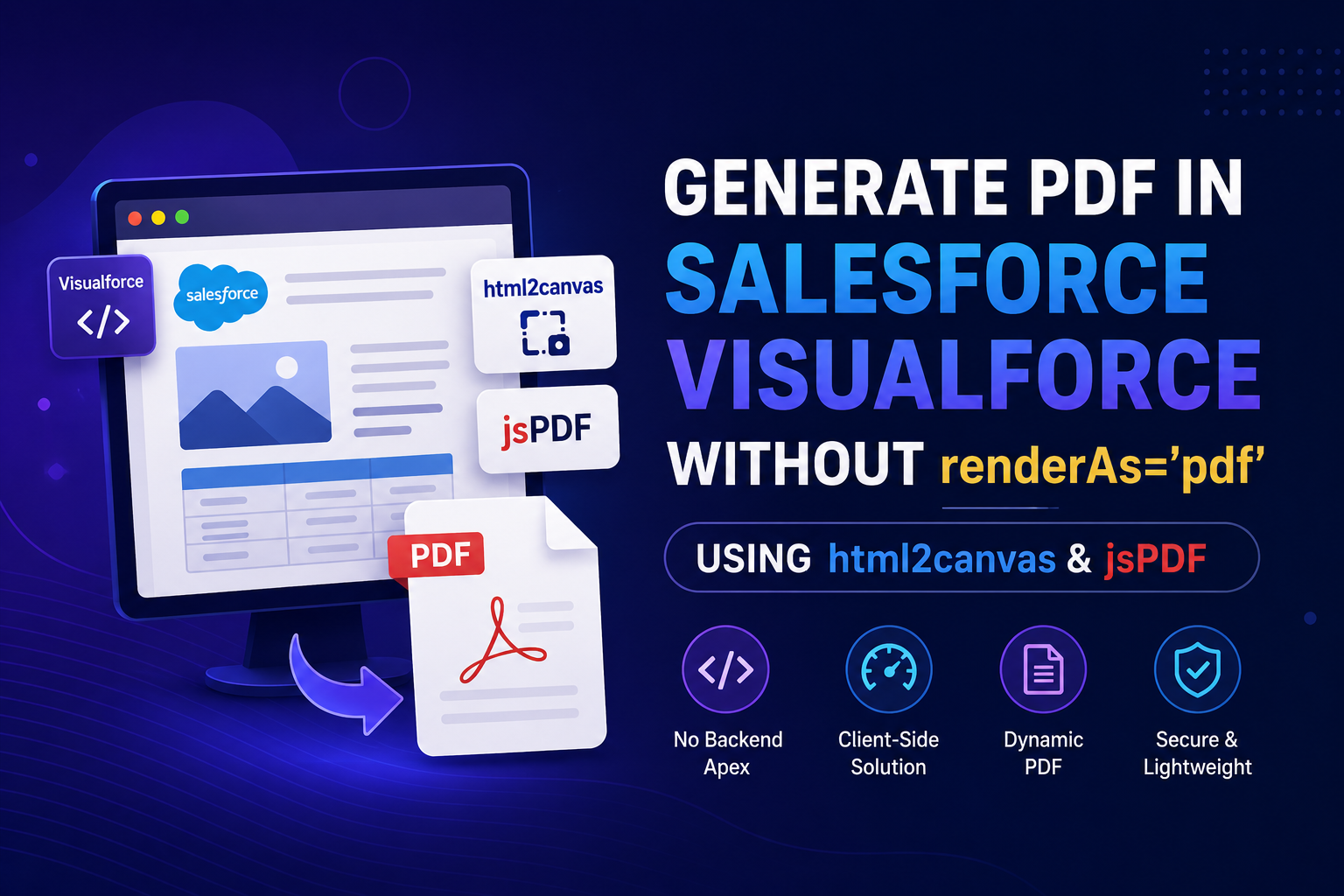
Generating PDFs is a common requirement in Salesforce projects — from invoices and reports to contracts and proposals. In this guide, we walk through how to generate and download a PDF from an HTML table inside a Visualforce page using two external JavaScript libraries: html2canvas and jsPDF — without using Salesforce's native renderAs='pdf' attribute.
What is renderAs='pdf' and Why Avoid It?
Salesforce natively supports PDF generation via Visualforce pages by setting renderAs='pdf' on the apex:page tag. It uses the Flying Saucer PDF library under the hood. While convenient, it comes with serious limitations that make it unsuitable for modern, complex layouts.
• No JavaScript support — dynamic content will not render • Limited CSS support — no Flexbox, Grid, or modern CSS3 • Not compatible with Lightning Web Components • Large complex layouts produce unpredictable output • Page size and margins require @page CSS rule workarounds
What We Will Use Instead
We will use two lightweight, CDN-hosted JavaScript libraries entirely on the client side — no npm, no Node.js, no server required: • html2canvas (v1.4.1) — Captures any HTML element as a high-resolution PNG canvas image • jsPDF — Converts that canvas image into a fully formatted, downloadable PDF file Both libraries are loaded directly in the Visualforce page head tag via CDN links.
Step 1 — Create the Visualforce Page
Create a new Visualforce page in your Salesforce org. Set showHeader='false' and applyBodyTag='false' to render a clean HTML shell without Salesforce chrome. Do NOT set renderAs='pdf' on the apex:page tag — that is exactly what we are replacing.
<apex:page showHeader="false" applyBodyTag="false">
  <html>
    <head>
      <script src="https://cdnjs.cloudflare.com/ajax/libs/html2canvas/1.4.1/html2canvas.min.js"></script>
      <script src="https://cdnjs.cloudflare.com/ajax/libs/jspdf/2.5.1/jspdf.umd.min.js"></script>
    </head>
    <body style="font-family: Arial, sans-serif; padding: 20px;">
      <!-- Button and Table go here -->
    </body>
  </html>
</apex:page>
Step 2 — Build the HTML Table
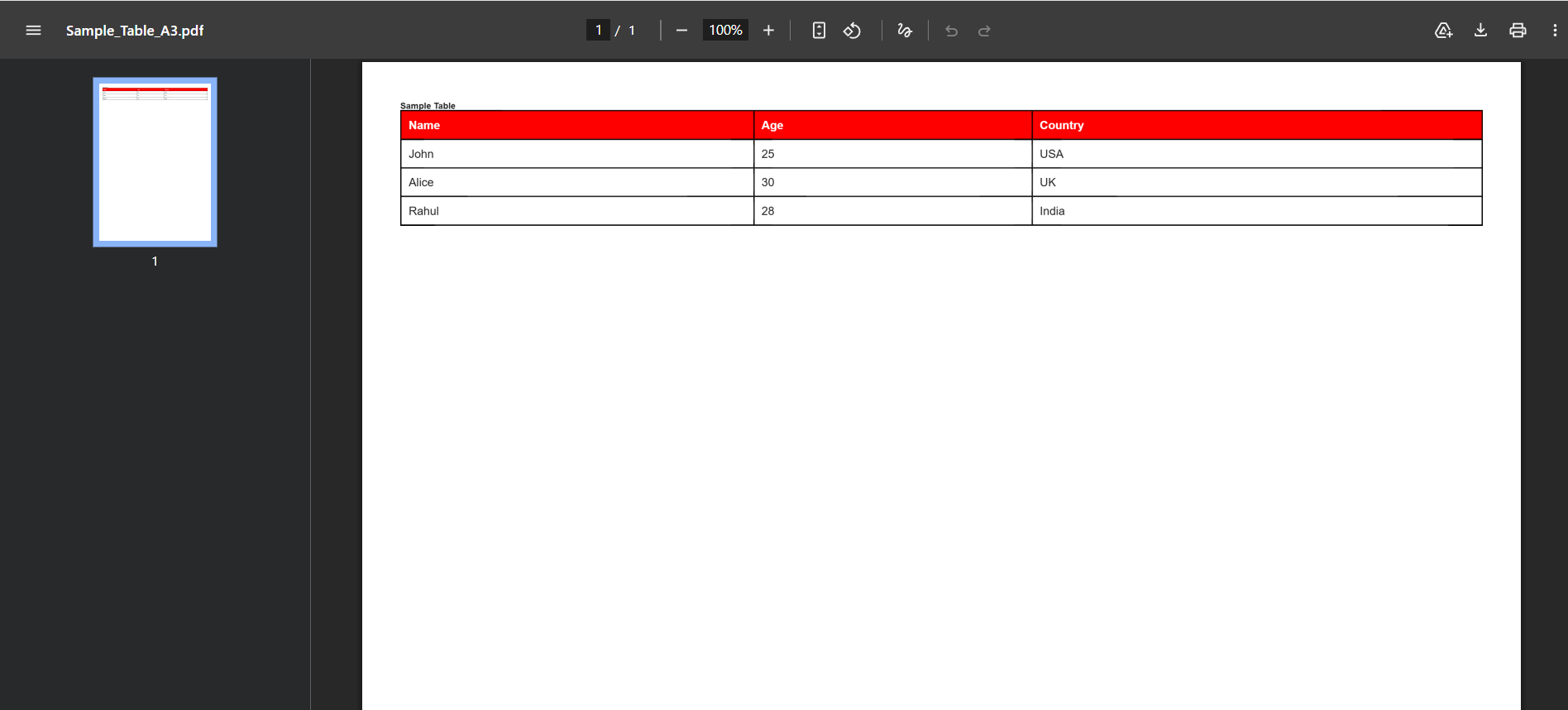
Wrap your table or report content inside a div with a unique id (e.g., id='pdfTable'). This is the exact element html2canvas will capture and convert to an image. You can apply full CSS3 styling — borders, background colors, padding — since rendering happens entirely in the browser, not on Salesforce's server.
<div id="pdfTable">
  <h2>Sample Table</h2>
  <table style="width:100%; border-collapse:collapse; border:2px solid black;">
    <tr style="background-color:red; color:white;">
      <th style="border:1px solid black; padding:10px; text-align:left;">Name</th>
      <th style="border:1px solid black; padding:10px; text-align:left;">Age</th>
      <th style="border:1px solid black; padding:10px; text-align:left;">Country</th>
    </tr>
    <tr>
      <td style="border:1px solid black; padding:10px;">John</td>
      <td style="border:1px solid black; padding:10px;">25</td>
      <td style="border:1px solid black; padding:10px;">USA</td>
    </tr>
    <tr>
      <td style="border:1px solid black; padding:10px;">Alice</td>
      <td style="border:1px solid black; padding:10px;">30</td>
      <td style="border:1px solid black; padding:10px;">UK</td>
    </tr>
    <tr>
      <td style="border:1px solid black; padding:10px;">Rahul</td>
      <td style="border:1px solid black; padding:10px;">28</td>
      <td style="border:1px solid black; padding:10px;">India</td>
    </tr>
  </table>
</div>
Step 3 — Write the downloadPDF() Function
This is the core of the solution. The downloadPDF() async function does the following: 1. Initializes jsPDF with A3 portrait format 2. Calls html2canvas on the target div at scale 2 for sharp, high-resolution output 3. Converts the canvas to a PNG base64 image 4. Calculates image dimensions to fit the A3 page width 5. Adds the image to the PDF, then loops to add more pages if content overflows
async function downloadPDF() {
  const { jsPDF } = window.jspdf;
  const element = document.getElementById("pdfTable");

  // Capture the HTML element as a canvas image (scale:2 = high resolution)
  const canvas = await html2canvas(element, { scale: 2 });
  const imgData = canvas.toDataURL("image/png");

  // Create A3 Portrait PDF
  const pdf = new jsPDF({
    orientation: 'portrait',
    unit: 'mm',
    format: 'a3'
  });

  const pageWidth = 277;   // A3 width in mm
  const pageHeight = 400;  // A3 height in mm
  const imgWidth = pageWidth;
  const imgHeight = (canvas.height * imgWidth) / canvas.width;

  let heightLeft = imgHeight;
  let position = 10;

  // Add first page
  pdf.addImage(imgData, 'PNG', 10, position, imgWidth, imgHeight);
  heightLeft -= pageHeight;

  // Add extra pages if content overflows
  while (heightLeft > 0) {
    position = heightLeft - imgHeight;
    pdf.addPage();
    pdf.addImage(imgData, 'PNG', 10, position, imgWidth, imgHeight);
    heightLeft -= pageHeight;
  }

  pdf.save("Sample_Table_A3.pdf");
}
Step 4 — Add the Download Button
Add a simple HTML button that calls downloadPDF() on click. When triggered, the entire PDF is generated in the user's browser and downloaded instantly — no Apex controller, no page refresh, and no server-side processing needed.
<button onclick="downloadPDF()"
  style="
    padding: 10px 20px;
    background-color: blue;
    color: white;
    border: none;
    border-radius: 5px;
    cursor: pointer;
    margin-bottom: 20px;
  ">
  Download A3 PDF
</button>
Complete Visualforce Page Code
Here is the full, ready-to-deploy Visualforce page combining all the steps above:
<apex:page showHeader="false" applyBodyTag="false">
  <html>
    <head>
      <script src="https://cdnjs.cloudflare.com/ajax/libs/html2canvas/1.4.1/html2canvas.min.js"></script>
      <script src="https://cdnjs.cloudflare.com/ajax/libs/jspdf/2.5.1/jspdf.umd.min.js"></script>
      <script>
        async function downloadPDF() {
          const { jsPDF } = window.jspdf;
          const element = document.getElementById("pdfTable");
          const canvas = await html2canvas(element, { scale: 2 });
          const imgData = canvas.toDataURL("image/png");
          const pdf = new jsPDF({ orientation: 'portrait', unit: 'mm', format: 'a3' });
          const pageWidth = 277;
          const pageHeight = 400;
          const imgWidth = pageWidth;
          const imgHeight = (canvas.height * imgWidth) / canvas.width;
          let heightLeft = imgHeight;
          let position = 10;
          pdf.addImage(imgData, 'PNG', 10, position, imgWidth, imgHeight);
          heightLeft -= pageHeight;
          while (heightLeft > 0) {
            position = heightLeft - imgHeight;
            pdf.addPage();
            pdf.addImage(imgData, 'PNG', 10, position, imgWidth, imgHeight);
            heightLeft -= pageHeight;
          }
          pdf.save("Sample_Table_A3.pdf");
        }
      </script>
    </head>
    <body style="font-family: Arial, sans-serif; padding: 20px;">
      <button onclick="downloadPDF()" style="padding:10px 20px; background-color:blue; color:white; border:none; border-radius:5px; cursor:pointer; margin-bottom:20px;">
        Download A3 PDF
      </button>
      <div id="pdfTable">
        <h2>Sample Table</h2>
        <table style="width:100%; border-collapse:collapse; border:2px solid black;">
          <tr style="background-color:red; color:white;">
            <th style="border:1px solid black; padding:10px;">Name</th>
            <th style="border:1px solid black; padding:10px;">Age</th>
            <th style="border:1px solid black; padding:10px;">Country</th>
          </tr>
          <tr><td style="border:1px solid black; padding:10px;">John</td><td style="border:1px solid black; padding:10px;">25</td><td style="border:1px solid black; padding:10px;">USA</td></tr>
          <tr><td style="border:1px solid black; padding:10px;">Alice</td><td style="border:1px solid black; padding:10px;">30</td><td style="border:1px solid black; padding:10px;">UK</td></tr>
          <tr><td style="border:1px solid black; padding:10px;">Rahul</td><td style="border:1px solid black; padding:10px;">28</td><td style="border:1px solid black; padding:10px;">India</td></tr>
        </table>
      </div>
    </body>
  </html>
</apex:page>
How Multi-Page PDF Works
html2canvas captures the entire target div as a single tall image regardless of how long it is. jsPDF then slices this image across multiple pages using a while loop. The 'heightLeft' variable tracks how much image content remains after each page is filled. The 'position' offset shifts the image up on each new page so the correct portion is visible — making it seamlessly support invoices, long reports, or large data tables.
How html2canvas image is split across multiple A3 PDF pages using the heightLeft loop
Comparison: renderAs='pdf' vs html2canvas + jsPDF
| Feature | renderAs='pdf' | html2canvas + jsPDF |
|---|---|---|
| Setup | Built-in, no libraries | CDN script tags only |
| Modern CSS support | No — CSS2 only | Full CSS3 in browser |
| JavaScript execution | None | Full browser JS |
| LWC compatibility | No | Yes via HTML export |
| Generation location | Salesforce server | Client-side browser |
| Multi-page support | Limited | Yes, via loop logic |
| Custom page sizes | Workaround needed | A3, A4, custom sizes |
| Best for | Simple VF reports | Complex layouts & tables |
Best Practices
• Always use scale: 2 in html2canvas for sharp, high-resolution PDF output.
• Host jsPDF and html2canvas as Salesforce Static Resources for orgs with strict CSP policies.
• Keep the target div free of fixed positioning or overflow:hidden to ensure full capture.
• Test PDF output across Chrome, Edge, and Firefox before deploying.
• For very large tables, consider paginating the HTML before capture for cleaner page breaks.
• Never use renderAs='pdf' alongside this approach — remove it entirely from the apex:page tag.
Whether you are building invoices, data exports, or complex reports inside Salesforce Visualforce pages, html2canvas combined with jsPDF is a powerful, modern, and fully client-side alternative to renderAs='pdf'. It gives you complete CSS rendering, JavaScript support, custom page sizes, and multi-page handling — all without touching Salesforce's server-side PDF engine.