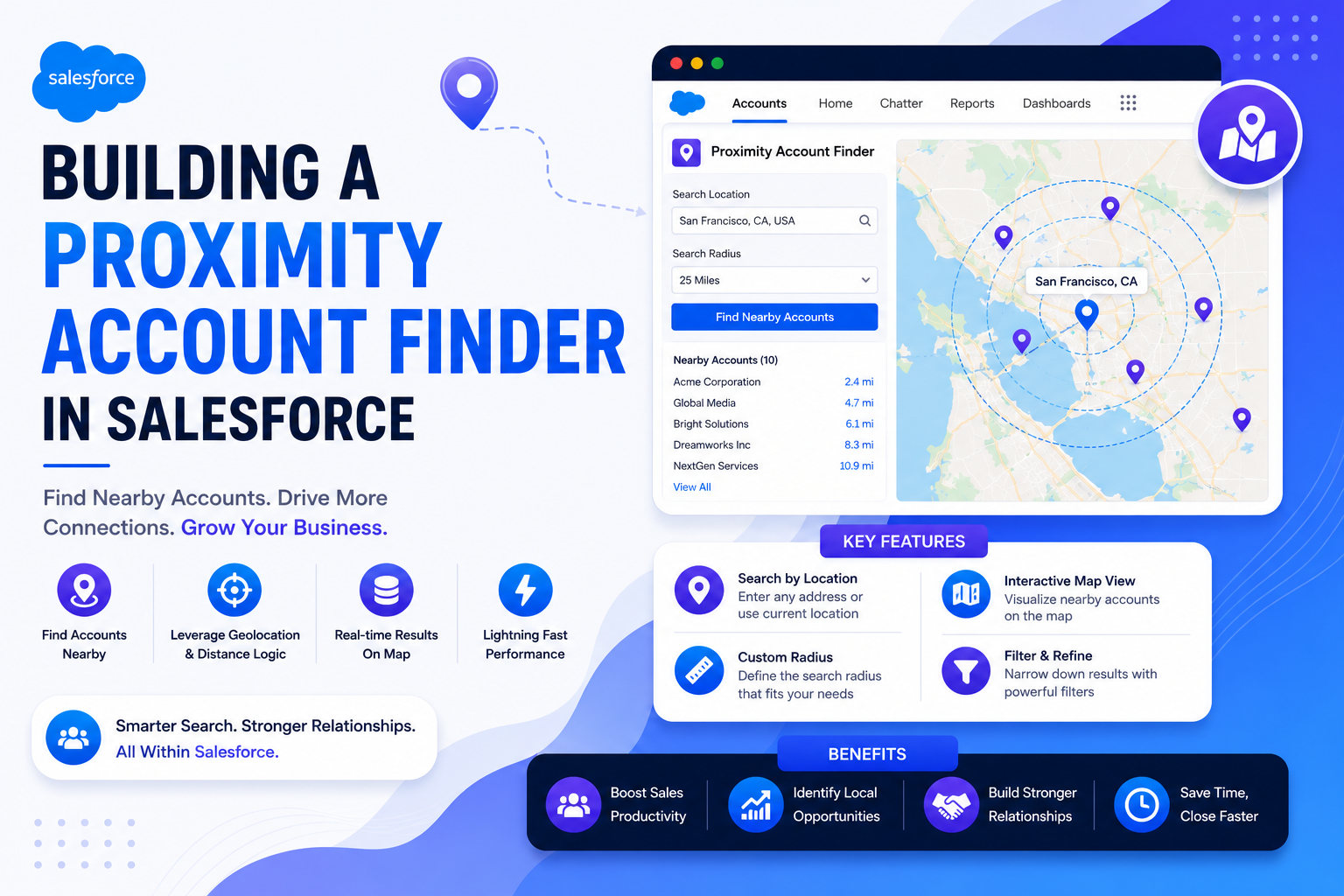
Modern businesses often need more than just data — they need location intelligence. In this project, the client wanted a System Viewer that could select a Source Account, identify other Accounts within a specific radius, filter them using business criteria, view results in a list or on a map, generate a PDF report, and display the distance in miles for each result. The goal? Help end users quickly identify nearby machines (Accounts) and make faster operational decisions.
🎯 Project Objective
From a single Source Account, users should be able to enter a radius in miles, apply additional filter criteria, retrieve nearby Accounts (Proximity Accounts), and view distance from source, machine details, cost, and last sale information. They can also choose to generate a PDF report or view locations on a map. If results are displayed in a list, the distance in miles must be clearly visible.
🧠 Functional Overview
Step 1: Select Source Account
Any Account in the system can act as a Source. The user initiates the search from that record.
Step 2: Apply Search Filters
The system displays a filter screen where users can configure: Radius (Miles) with an editable default value, Machine Type as a multi-select, Last Sale Days Ago, Cost Range, and other custom fields already present on Account. Users can override default values before running the search.
Step 3: View Search Results
After clicking Search, the system calculates distance between the Source and other Accounts, filters based on radius, applies additional business criteria, and displays results in a structured list. Each row shows Account Name, Distance in miles, Machine Type, Cost, and Last Sale Days Ago. Distance calculation is handled using Latitude and Longitude fields on Account with the Haversine formula, or Salesforce geolocation SOQL.
🗺 Option 1: View Map
Users can switch to a Map Viewer to visualize nearby Accounts. This helps in identifying cluster areas, planning logistics, and understanding geographical distribution. The map view displays a source location marker, destination account markers, and an optional info window with machine details.
📄 Option 2: Generate PDF
After selecting filters and reviewing results, users can click Generate PDF. The generated report includes Source Account details, applied filter criteria, list of Proximity Accounts, distance in miles, and cost and machine information. This is useful for customer discussions, field operations, management reporting, and offline reference.
⚙️ Technical Architecture Overview
This solution was implemented using an Apex Controller, Lightning Web Components for the UI, Geolocation fields on the Account object, Map integration, and PDF generation logic. A core controller handles Source Account retrieval, radius configuration, filter logic, distance calculation, map dataset preparation, and PDF dataset preparation.
Key Data Elements
| Variable | Purpose |
|---|---|
| recordId | Source Account ID |
| SourceAccount | Full Source record |
| radiusDis | Radius in miles |
| Last_Sale_Days_Ago | Filter value |
| Machines | Machine filter |
| accountListSearched | Filtered proximity results |
| accountListSearched1 | Map dataset |
| SearchAccountListWithMiles | Accounts with calculated distance |
| listIsEmpty | UI control flag |
| headerData | Report header |
| url | Map redirection |
| selectedValue | Filter selection |
| sourceAddress | Source location string |
| otherAccountAddress | Compared location |
📐 How Distance Is Calculated
Option 1: SOQL Geolocation Query
List<Account> nearbyAccounts = [
    SELECT Id, Name,
           DISTANCE(BillingAddress, GEOLOCATION(:sourceLat, :sourceLon), 'mi') dist
    FROM Account
    WHERE DISTANCE(BillingAddress, GEOLOCATION(:sourceLat, :sourceLon), 'mi') < :radiusMiles
    ORDER BY DISTANCE(BillingAddress, GEOLOCATION(:sourceLat, :sourceLon), 'mi')
];
Option 2: Haversine Formula in Apex
public static Double calculateDistance(Double lat1, Double lon1, Double lat2, Double lon2) {
    Double R = 3958.8; // Earth radius in miles
    Double dLat = Math.toRadians(lat2 - lat1);
    Double dLon = Math.toRadians(lon2 - lon1);
    Double a = Math.sin(dLat / 2) * Math.sin(dLat / 2)
             + Math.cos(Math.toRadians(lat1)) * Math.cos(Math.toRadians(lat2))
             * Math.sin(dLon / 2) * Math.sin(dLon / 2);
    Double c = 2 * Math.atan2(Math.sqrt(a), Math.sqrt(1 - a));
    return R * c; // Distance in miles
}
🧩 Common Challenges Solved
| Challenge | Solution |
|---|---|
| Multiple API calls | Optimized SOQL filtering |
| Incorrect distance | Geolocation precision |
| UI performance | Controlled rendering |
| Large datasets | Filter-first design |
| User flexibility | Override defaults |
🏁 Final Thoughts
This Proximity Account Finder is more than just a search tool. It combines geolocation intelligence, business filtering, visualization, and reporting — all within Salesforce. By allowing users to filter smartly, view geographically, analyze strategically, and export professionally, it transforms Account data into actionable insight. And that's the real power of building intelligent Salesforce solutions.